 Helm Sparkle
Documentation / Get started
Get started: the Sparkle journey
Follow one brand from a new organization to a published, verified page. Each step names the role who does it and where it happens in the app.
Sparkle is a hand-off between roles. Work moves from the Super Administrator to the Org Administrator, then to analysts, brand managers and content strategists. You can start at any step that matches your role.
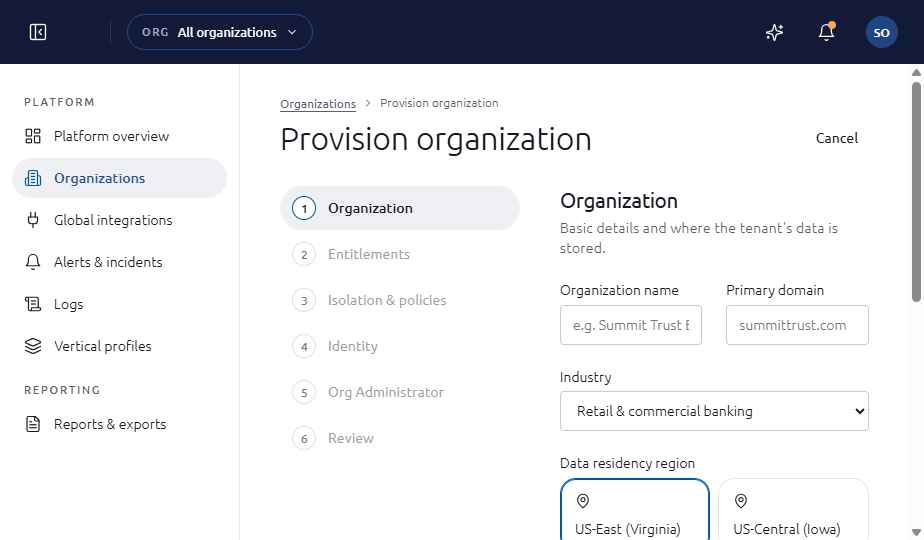
Provision the organization
Platform › Organizations › New organization
- Choose New organization and work through six steps: Organization, Entitlements, Isolation and policies, Identity, Org Administrator and Review.
- Set the engines the organization may measure, seats, markets, region and sign-in method.
- Name the first Org Administrator and confirm.
Result. The Org Administrator receives access to their organization.
Invite users and connect integrations
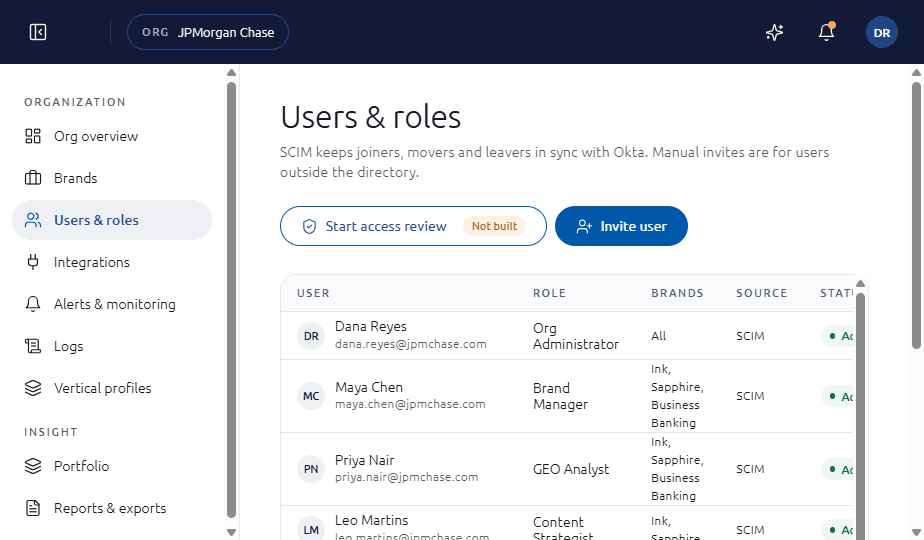
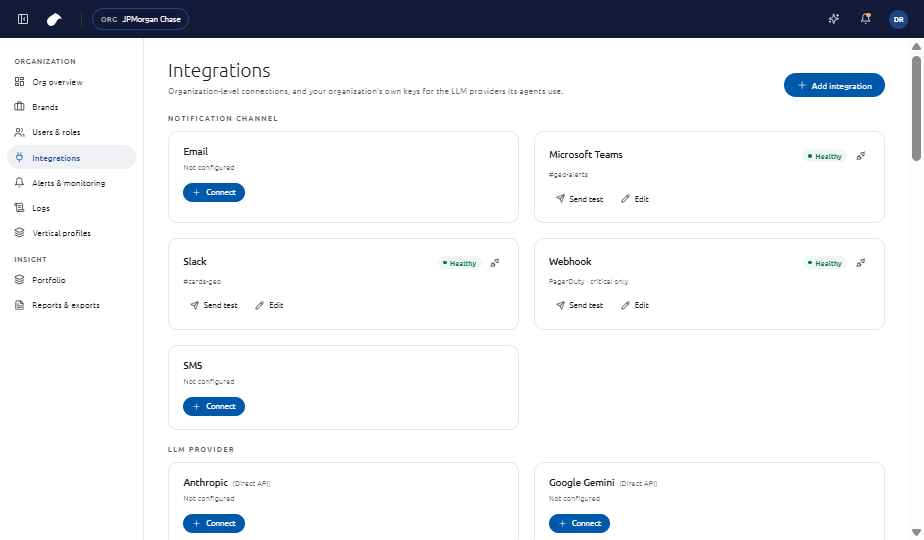
Organization › Users and roles, Integrations
- Invite people and assign one of the roles: Brand Manager, GEO Analyst or Content Strategist.
- Connect data sources such as Google Search Console and SEMrush. Search Console may ask you to re-authorize.
Result. Your team can sign in, and prompt sources are available.
Create a brand workspace
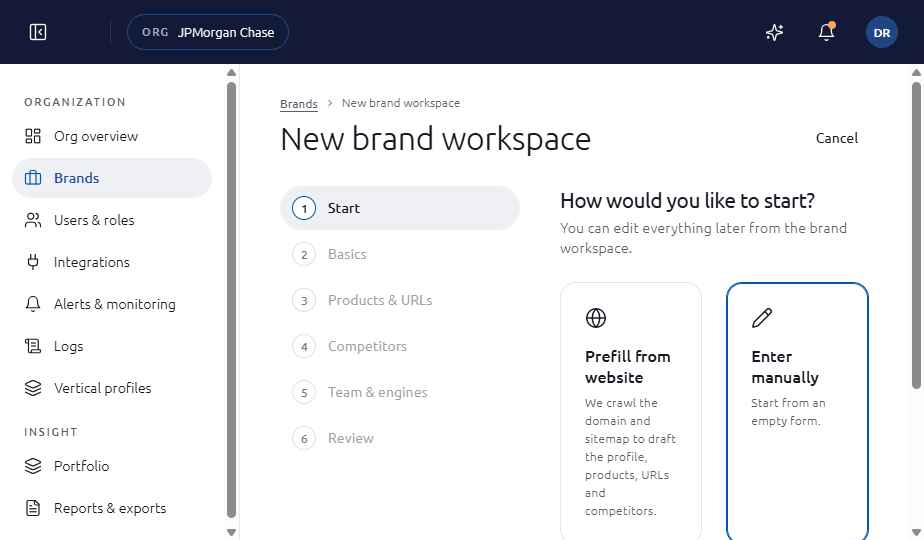
Organization › Brands › New brand
- Pick a start: prefill from a URL, upload a brief or enter details manually.
- Complete Basics, Products and URLs, Competitors (with aliases) and Team and engines. Assign at least one Brand Manager.
- Review and create. An unfinished wizard is saved under In progress.
Result. The brand appears in Brands and can be measured against its competitor set.
Build a prompt pool
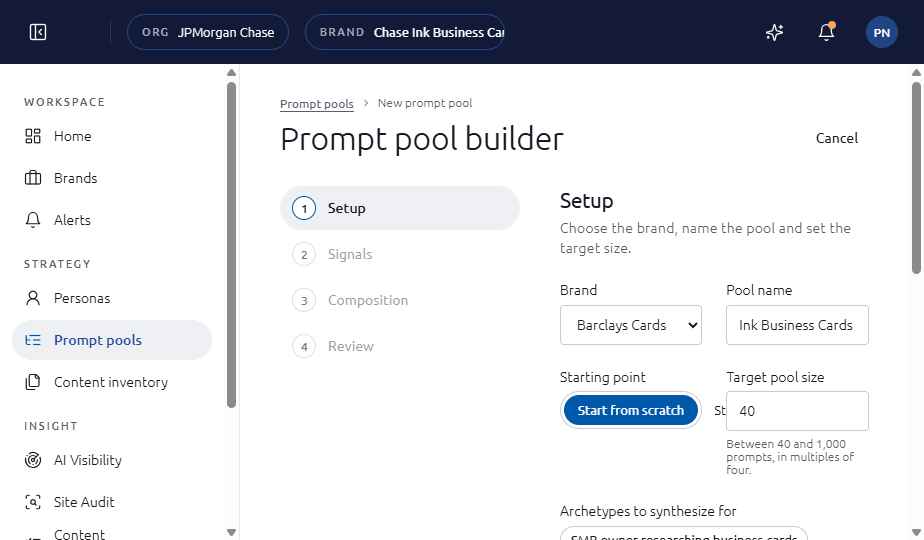
Strategy › Prompt pools › New prompt pool
- Setup: choose the brand and size of the pool.
- Signals: bring in Google Search Console, SEMrush, YAML and LLM expansion, and set the weight of each.
- Composition: set the funnel mix across Awareness, Research, Consideration and Decision, which always totals 100, then check the coverage matrix.
- Review and send for approval.
Result. The pool is In review and a task appears for the Brand Manager.
Review and approve the pool
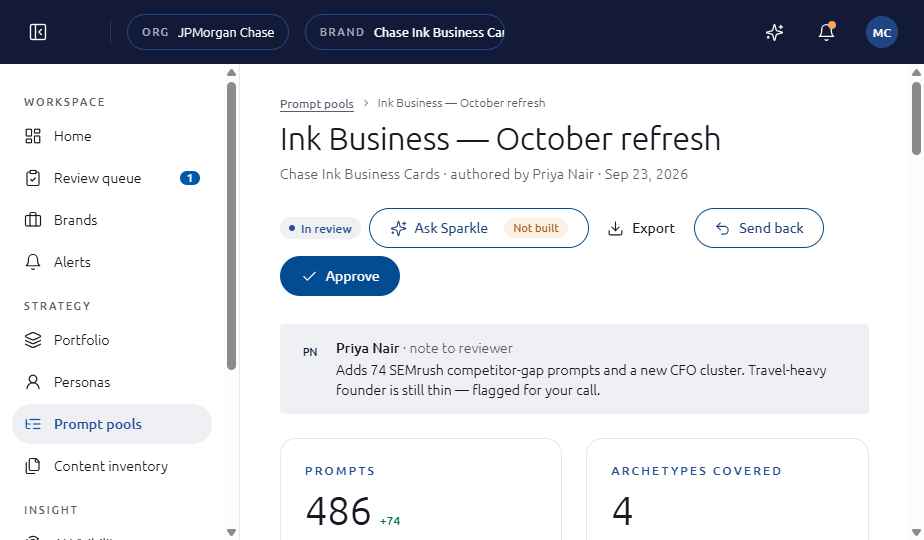
Workspace › Review queue
- Open the pool and read the Prompts, Coverage matrix, Clusters, Archetypes and History tabs.
- Annotate individual prompts with the comment icon.
- Approve to schedule the pool for the next sweep, or Send back with a reason code and a note.
Result. An approved pool runs in the next sweep. A sent-back pool returns to the analyst with your annotations.
Read results
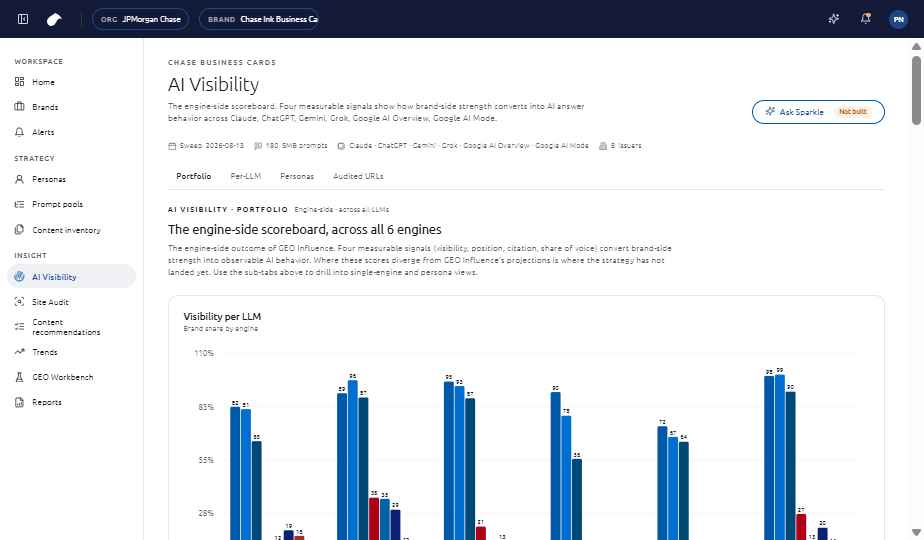
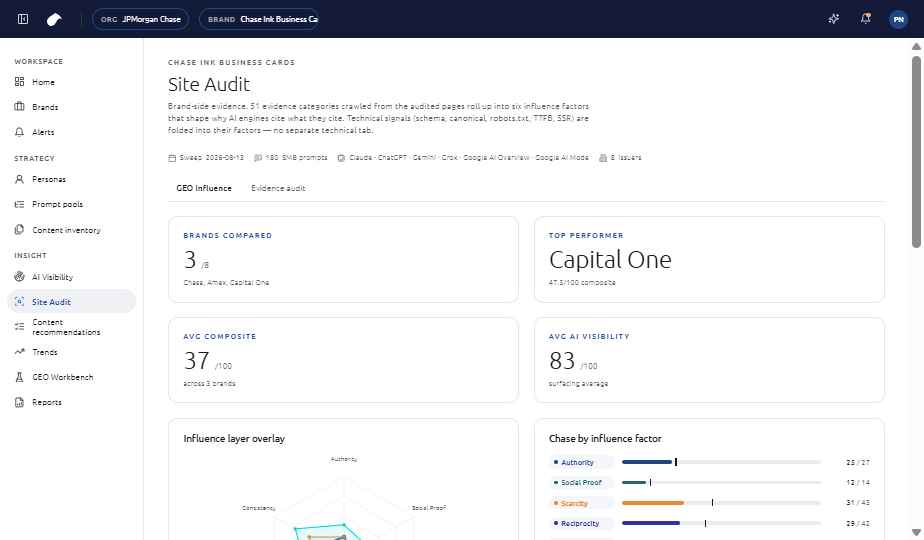
Insight › AI Visibility and Site Audit
- AI Visibility shows Portfolio, Per-LLM, Personas, Retrieval and Audited URLs across six engines.
- Site Audit shows GEO influence, the editable evidence audit, technical findings and per-URL visibility.
- Use Trends and Alerts to see what moved between sweeps.
Result. You know where the brand wins, where it is missing and what evidence is weak.
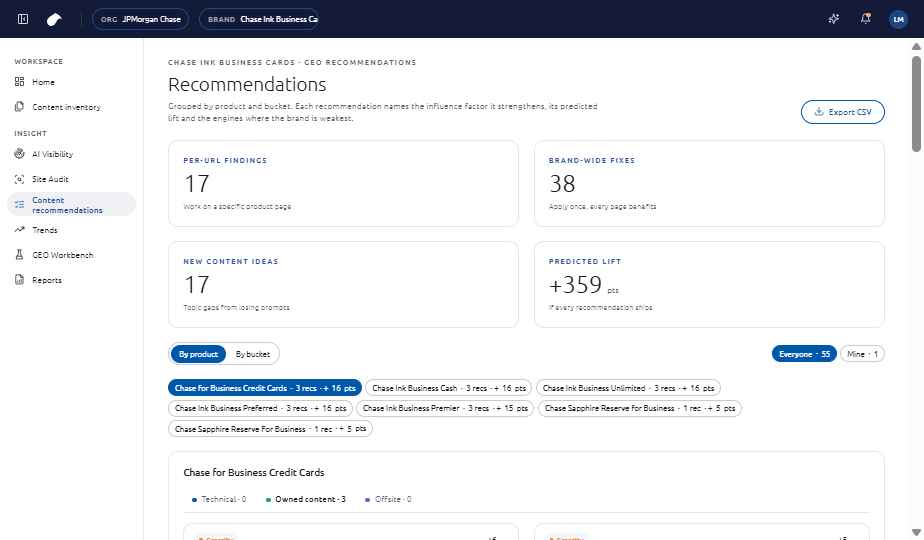
Work the recommendations
Insight › Content recommendations
- Open the Playbook for template-level actions or Per URL for page actions.
- Claim a recommendation, set its status and owner, add notes and action items, then send it for review.
- Use Content ideation for new content tied to prompts you do not yet win.
Result. Your queue under My queue shows what you own.
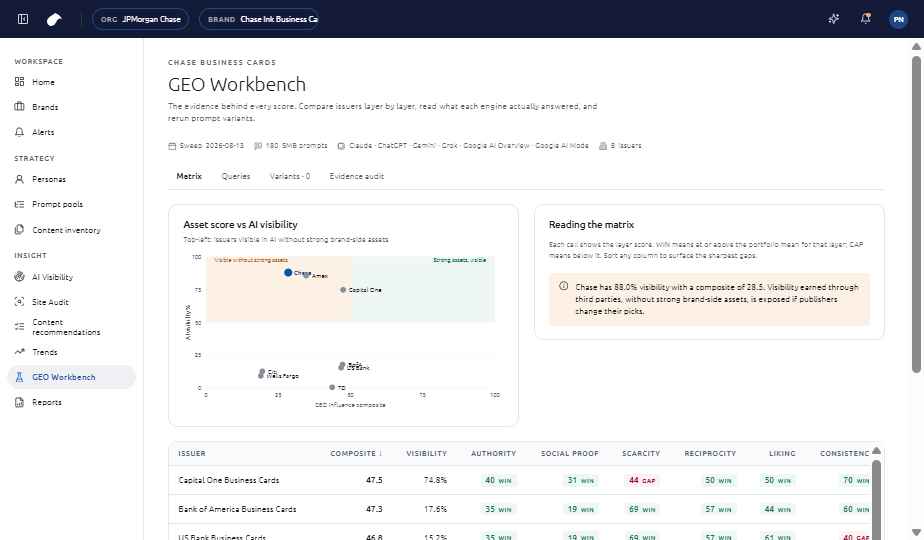
Test variants in the Workbench
Insight › GEO Workbench
- Pick a query and rerun it with a prompt variant.
- Compare the variant with the original in Variants and the Matrix.
Result. You can show which wording changes the engines’ answers.
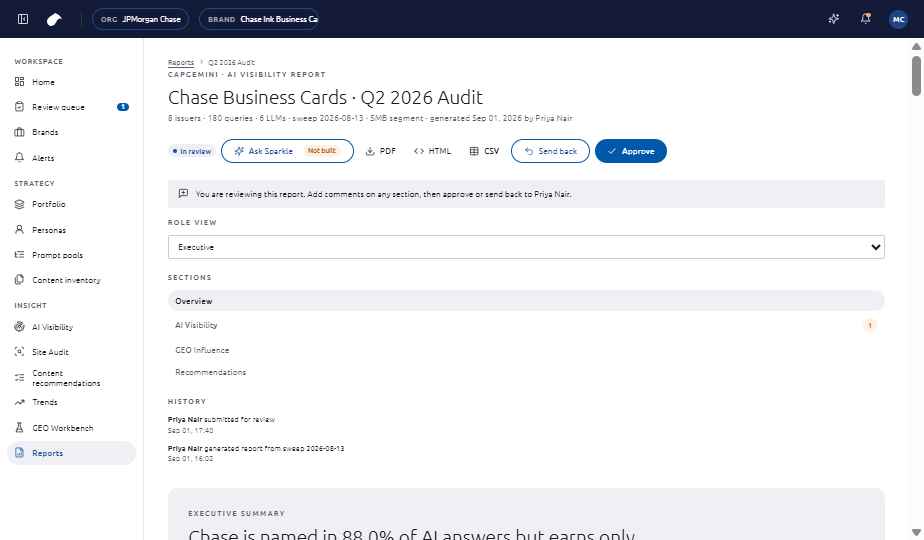
Generate, review and share a report
Insight › Reports
- Generate a report. It moves to review.
- Reviewers choose a role view, comment on sections, then approve or send back.
- Share the approved report by link, or export as PDF or HTML.
Result. Executives get a single approved document.
Check drafts and verify citations in the CMS
CMS authoring page, with the widget
- Run a page audit on the draft. Use Show on page to find each issue and fix it.
- Send any finding you will not fix now to the Helm backlog.
- Publish. After the baseline is taken, open citation insights for the URL.
Result. The recommendation is verified by the engines citing the page.
Last updated