 Helm Sparkle
Documentation / Integrations
Microsoft Teams
Posts alerts to a Microsoft Teams channel through an incoming webhook.
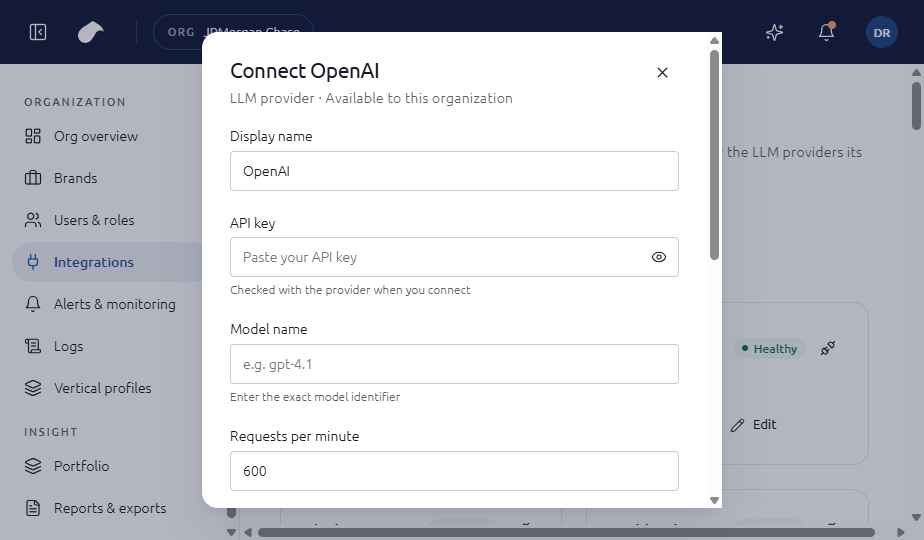
Set up
- Open Integrations in the navigation for your role.
- Choose Add integration, then select Microsoft Teams.
- Enter Incoming webhook URL; Channel name (for example #geo-alerts).
- Choose Connect. Helm tests the connection before it saves the integration.
If the test fails, you can choose Save without verifying. The integration is then saved with an error status until you fix it.
What the screen shows
The form asks for the incoming webhook URL from the Teams channel and the channel name. The channel name must begin with a # and use letters, numbers or hyphens.
Notes
- Create the incoming webhook in the Teams channel you want to use, then paste its URL here.
- The channel name is for your reference. Posts go to the channel the webhook belongs to.
Last updated
Was this page helpful?Contact support